AI Image Generator – Reelomo
Create stunning images in seconds · Free samples, no login
Get inspired
Pick a style, a product template, or a shot to start your draft.
Popular tools
Edit what you already have, or prepare it for your next shot.
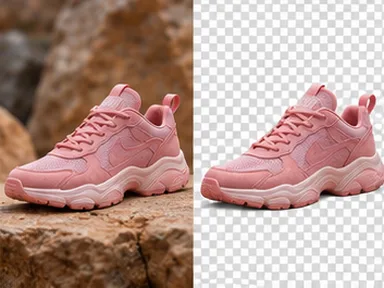
- Remove Background
Isolate the subject for a clean product shot.
Illustrative preview
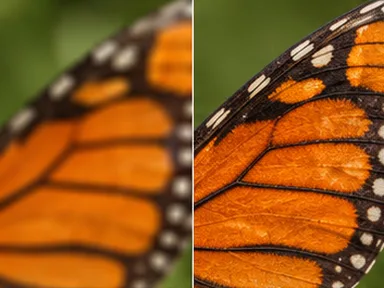
- AI Image Upscaler
Make a small image easier to reuse.
Illustrative preview
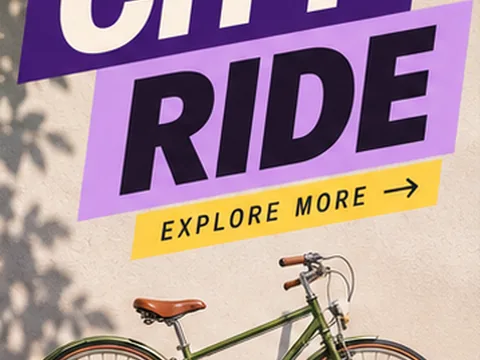
- Add Text to Image
Place a caption on your photo.
Illustrative preview
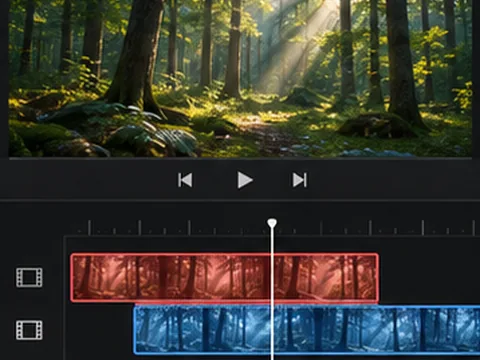
- Video Project Editor
Trim and arrange clips in your browser.
Illustrative preview
- Product Mockup
Place your design on a sample product.
Illustrative preview
- Video to GIF
Export a short loop from an existing clip.
Illustrative preview
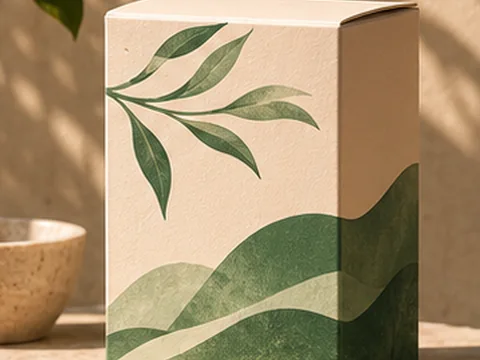
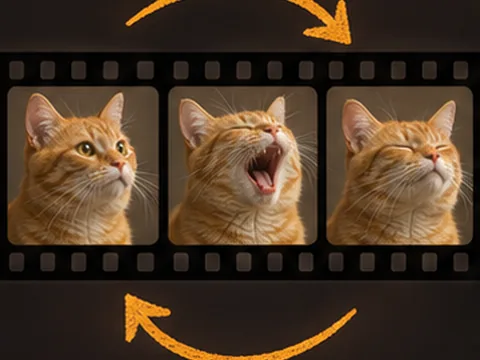
Featured AI models
Choose a model to load it in the studio.
From first idea to download
- Start a draft. Add a photo, write a prompt or choose a style above.
- Set the frame. Pick a model, review the format and check the credit cost.
- Find your result. Open My Videos to preview, download or reuse settings.
Frequently asked questions
What can I make with Reelomo?
Create images from a prompt, edit a reference photo, animate a still image, or make a short product showcase. Browse the tool directory for other ways to edit and export your media.
Can I try Reelomo for free?
You can play and download prepared samples, browse prompts, and use browser photo utilities without buying credits. To generate with a cloud model, sign in and review the credit cost shown before you submit.
Do I need to sign in?
You can explore examples and use browser photo utilities without an account. Sign in to run cloud generation and to access your saved results and billing history.
How do I turn a photo into a video?
Open Image to Video, upload a photo, and describe what should move. Specify the subject or camera motion, then review the model, framing and duration.
How do I edit a photo with a prompt?
Open Image to Image and upload a reference. Describe the change and what should stay the same, such as the subject, background, or lighting.
Can I reuse a prompt or template?
Open an idea from Inspiration or choose a video template. Send it to the workbench, then edit the prompt or replace the sample image before submitting.
Why can’t I select a model?
The model directory includes both models you can use and models listed for reference. The workbench shows which models are available for your workflow and their supported settings.
How much does a generation cost?
The workbench quotes credits for your selected model and settings before submission. Credits are sold in one-time packs. See pricing and billing questions for details.
Where can I find and download my results?
Open My Videos with the account you used to generate the result. Open a completed task to preview, download, or reuse its settings. Browser tools offer the download in the tool itself.
Are my uploads and results public?
Submitted media and results are stored privately. The selected provider processes the inputs needed for your task. See the Privacy Policy for details.
Can I use my creations in ads or listings?
Use source media you have permission to use and check the finished result for the rights needed for your intended use. See the Terms.